Reportix tutorial
Pixel PDF for operational documents — reports, forms, statements, work orders, certificates. License Reportix on the site first.
Before you start
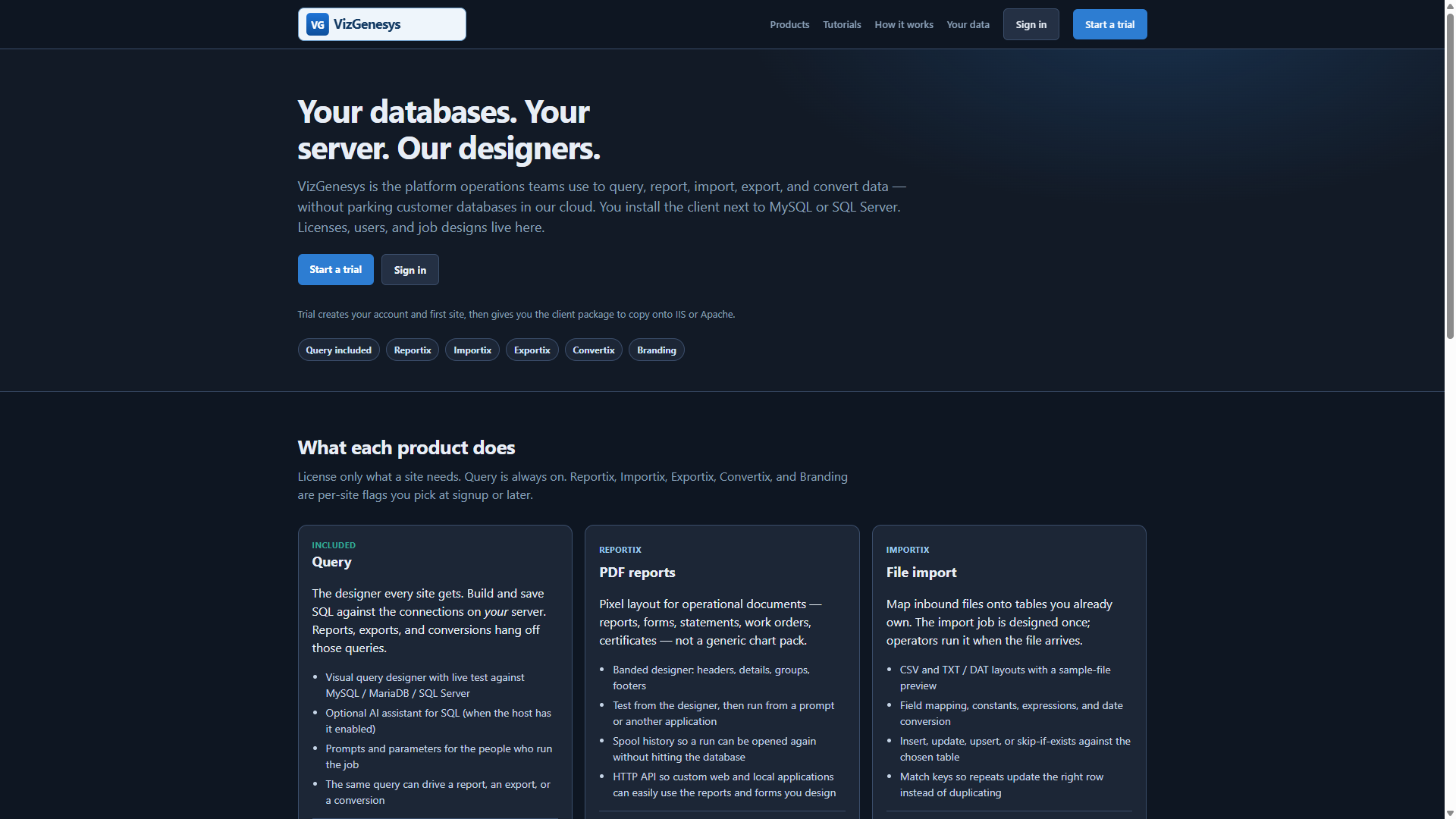
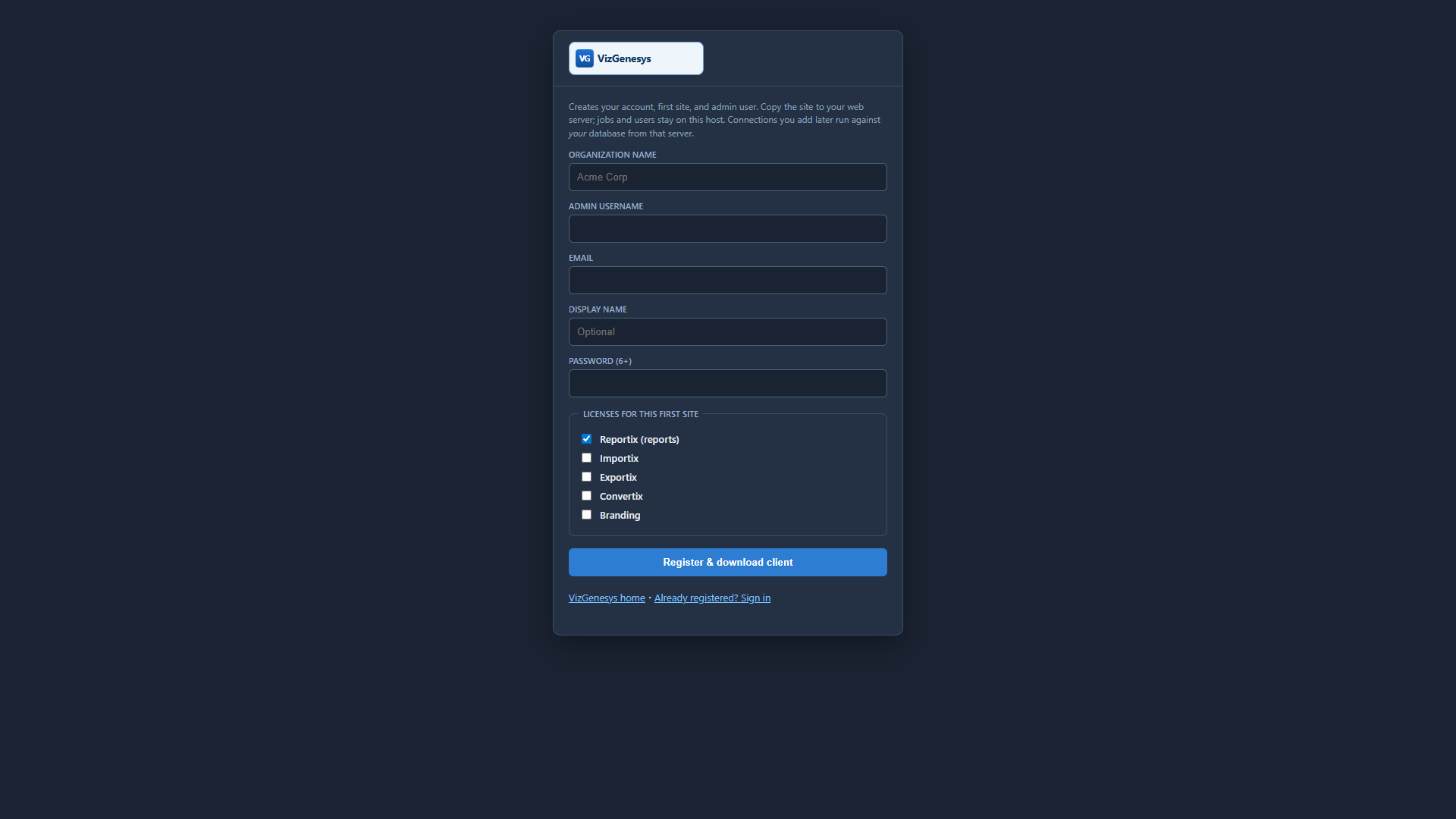
Register or log into the main VizGenesys website at www.vizgenesys.com. Set up your company. Click Sites and set up or add a new site. Click Download and download the client-side package.
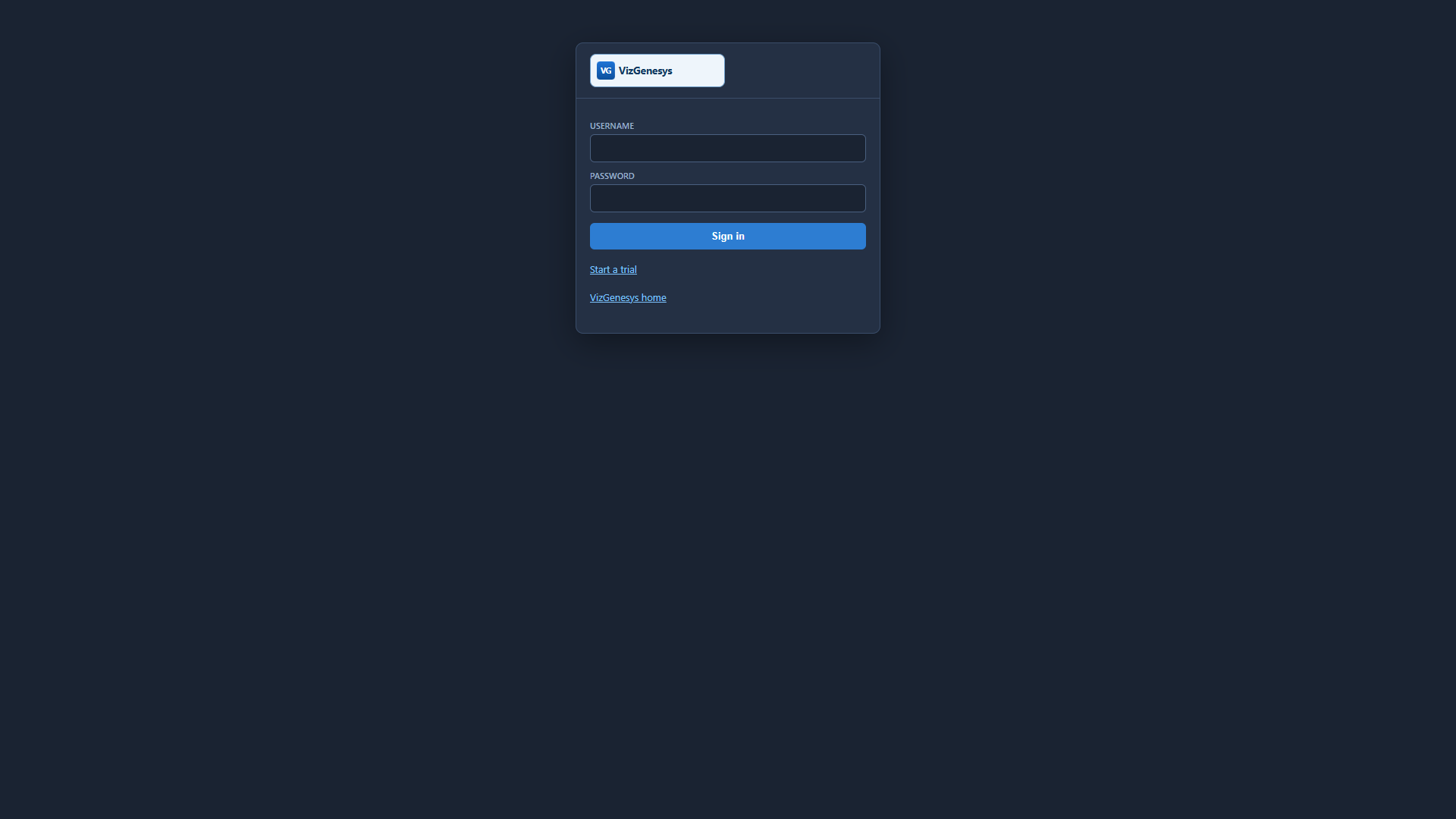
Unzip the package and copy the entire vizgenv4 folder to your target web server. Go to http://yourserver/vizgenv4/ and log in with that same username and password.
- Click the Connections tab and add connections to your database servers (MySQL / MariaDB or Microsoft SQL Server). These connection details remain on your server. They are not stored on vizgenesys.com or any other server. Save the connection. If the details are correct you will see that you have an active connection to that database server.
- Click Users & Groups. Select a user (your first user is the site administrator). Edit the user and select which connections and SQL types that user is allowed to use.
- Click Misc and tailor theme, branding, and the data folder to your environment if desired.
- Click Jobs and add your first report. Start from a saved query when you can.
Query, then layout
- Have a saved query (or you will paste SQL in the report). Operators should not be inventing SQL at run time.
- Jobs → Add report. Pick the connection and database the same way you did for the query.
- In the designer, place bands: page header, group headers, detail, group footers, page footer. Drop fields from the query onto the page.
- Test Report from the designer. That writes a spool PDF on this server (the data folder on Misc, or
vizgenv4/filesby default).
Run it for real
- From the dashboard, Run opens the prompt screen (
prompt.php?job=…) so parameters can be filled, then the PDF. - Spool history keeps the file. You can open that run again without hitting the database.
- Another application can open the same prompt URL, or call the HTTP API — see API tutorial.
Copying a report to another connection
Do not convert SQL in place when the engine changes. Use Copy to… (or confirm copy when you change Conn in the designer). Query SQL and embedded report SQL are translated; linked usequery slots stay as pointers to the copied query.
The PDF is produced on the client machine. The host only stores the job design.
More: all tutorials · HTTP API (PHP, VB, C)