Importix tutorial
Map an inbound CSV or text file onto a table you already own. Design the job once; operators run it when the file arrives. License Importix on the site.
Before you start
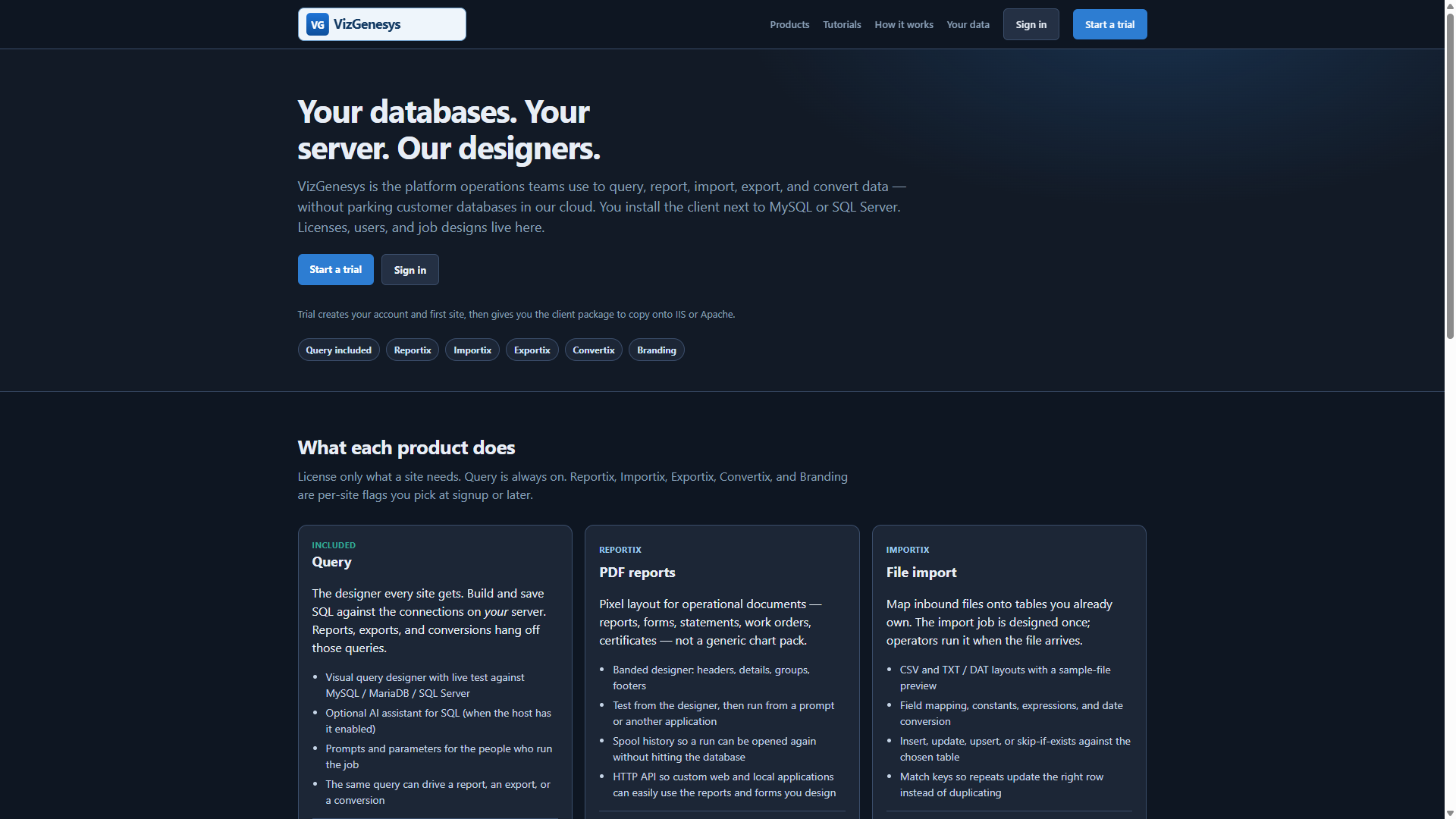
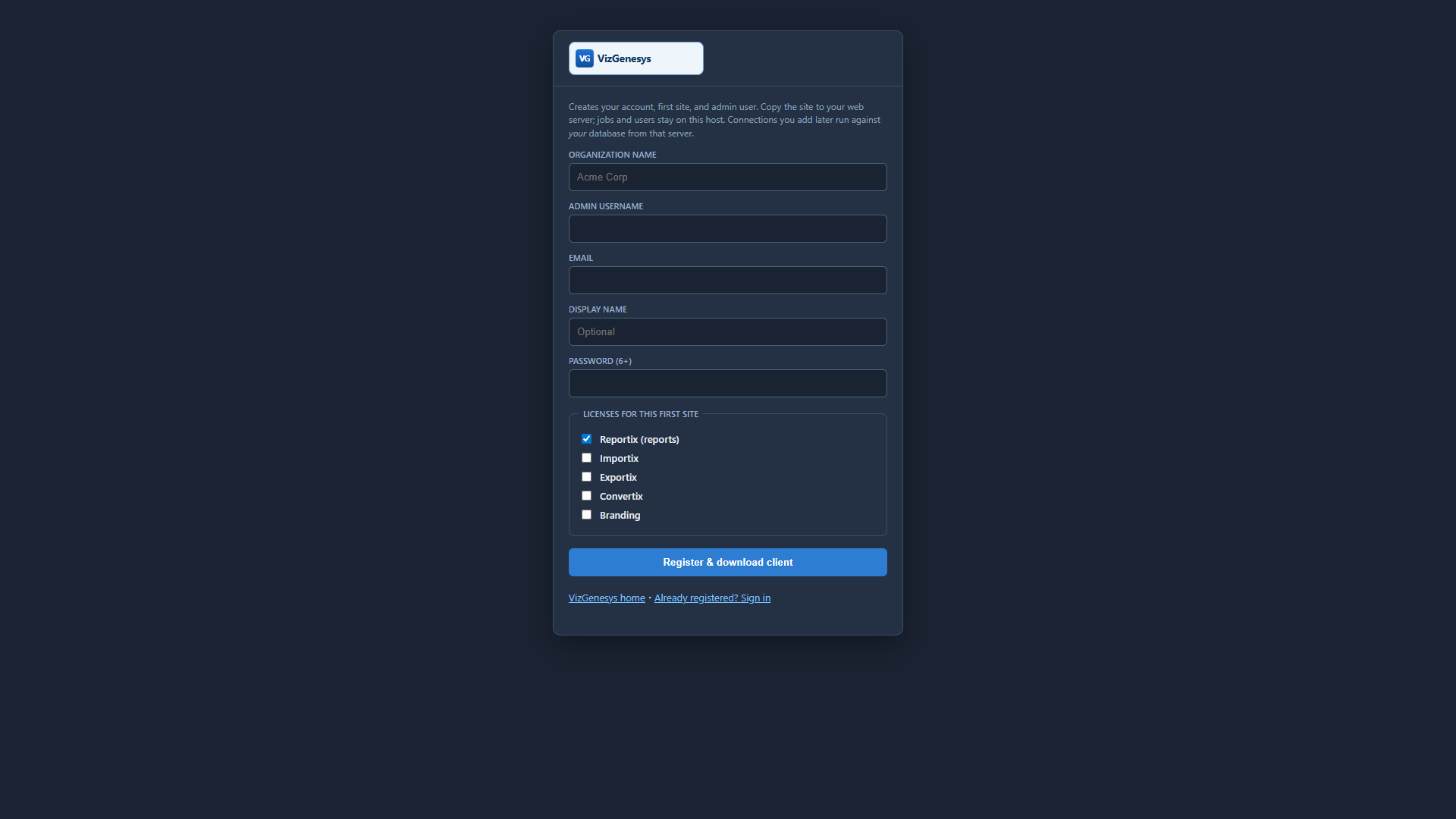
Register or log into the main VizGenesys website at www.vizgenesys.com. Set up your company. Click Sites and set up or add a new site. Click Download and download the client-side package.
Unzip the package and copy the entire vizgenv4 folder to your target web server. Go to http://yourserver/vizgenv4/ and log in with that same username and password.
- Click the Connections tab and add connections to your database servers (MySQL / MariaDB or Microsoft SQL Server). These connection details remain on your server. They are not stored on vizgenesys.com or any other server. Save the connection. If the details are correct you will see that you have an active connection to that database server.
- Click Users & Groups. Select a user (your first user is the site administrator). Edit the user and select which connections and SQL types that user is allowed to use.
- Click Misc and tailor theme, branding, and the data folder to your environment if desired.
- Click Jobs and add your first import.
Design the import
- Jobs → add an Import. Pick the connection and the destination database / table.
- Load a sample file so columns are visible. CSV, TXT, and DAT layouts are supported.
- Map each incoming column to a table field. You can also set constants, expressions, and date conversion.
- Choose how rows apply: insert, update, upsert, or skip-if-exists.
- Set match keys so a repeat file updates the right row instead of duplicating.
- Save. Test with a small file before the production drop.
Run it
- Dashboard Run (or
prompt.php?job=…) asks for the file, then writes to your table on this server. - Import logs land in the site data folder (
…/imports). Open the import viewer to see counts and errors. - Custom apps can POST the file text to the run API with
mode=import— see the HTTP API page.
Importix never creates your business tables for you. The table must already exist; this job only loads data into it.
More: all tutorials · HTTP API (PHP, VB, C)